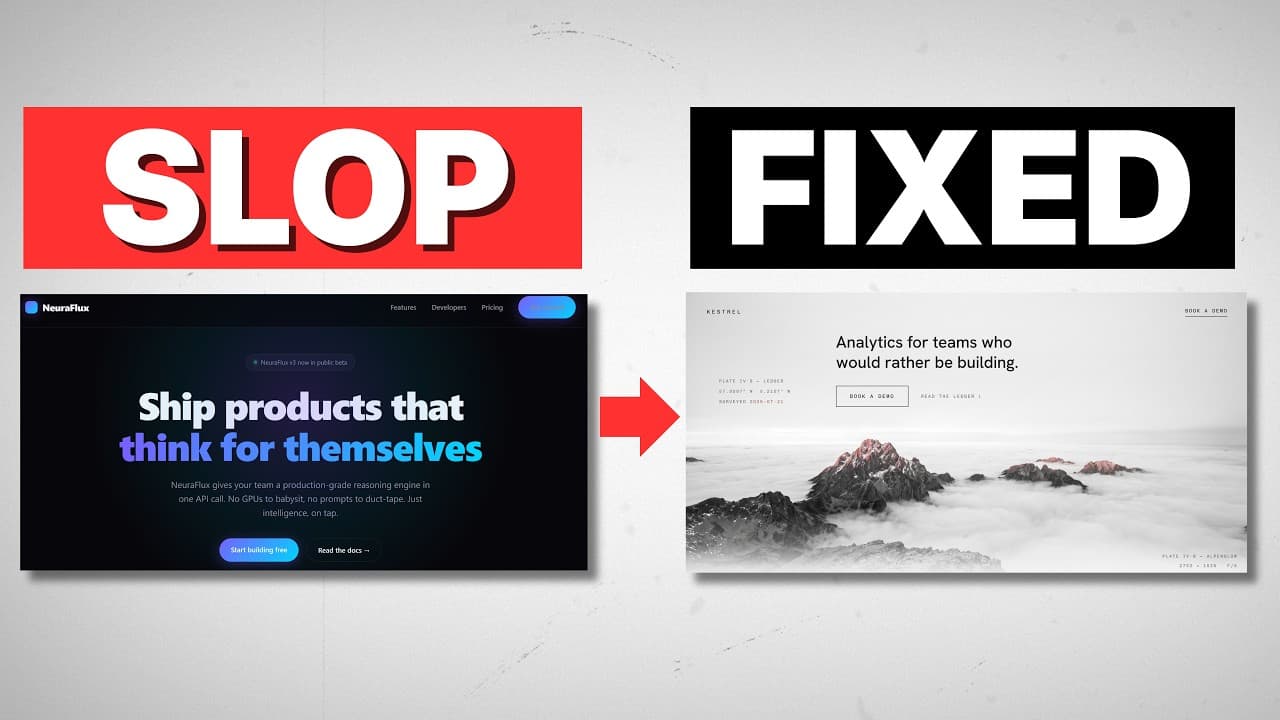
How to Design Front-End Websites with GPT Astra
GPT-6 Astra plus GPT Images 2.5 gives you the best AI website builder with free built-in image generation. Here's my exact step-by-step process for creating front-end designs that don't look like AI slop.
Want to learn Claude Code?See the Claude Code Masterclass
On this page
GPT-6 Astra plus GPT Images 2.5 is the fastest way I've found to create front-end designs that actually look good — not AI slop. You now get arguably the best AI model in the world at building websites, with the best image generation tool attached for free. No external image tools, no per-generation fees. I've run this exact process across dozens of design variations, and here's how you go from a blank page to a shareable, hosted website you actually like.
The whole thing comes down to a handful of repeatable steps: find references, generate variations across design families, pick a direction, then iterate with micro-tweaks. Let me walk you through all of it.
Why Is GPT Astra Good for Front-End Design?
Here's the thing about front-end design: it's an extremely iterative process. You don't nail the perfect layout on version one. You need to see version two, version three, version four — visually — before you actually know what you like. Most people don't know what they want until it's in front of them.
Astra speeds that up in a way the competition can't, and the reason is the built-in image generation tool from GPT Images 2.5. Design work constantly needs assets — hero graphics, illustrations, textures. With the Anthropic models or the Fable models, you have to hook up an external tool like Fal or Higgsfield, and you pay for every single generation. With Astra, image generation is baked in and free.
That matters because it makes the entire iteration loop quick and cheap. In one of my builds, Astra created a hero image entirely on its own — clouds and an observatory — because it understood the product was about "seeing something in the distance." I gave it zero design guidance on that image beyond my references. It just made the visuals relevant to the story being told.
Step 0: What Are You Actually Building?
Before anything else, get clear on the product. What is it? What does it do? Who's it for?
For the example in this guide, I built a landing page for a made-up product called Vantage — an AI analytics tool for financial markets aimed at personal investors. Think: here's what stock you should buy or sell. Totally fictional, but it gives Astra a real thing to design around.
You can't design in a vacuum. Nail down the product first, then move to inspiration.
Step 1: How Do You Find Design Inspiration?
You are not starting from scratch, and you should never prompt with "make it pop" or "make it look clean." That's how you get generic output. Instead, go find real examples of web pages and design aesthetics you like.
Great places to look:
- Pinterest — endless design boards
- Twitter/X — designers post their work constantly
- Landbook — curated landing pages
- Dribbble (that's Dribbble with three B's) — search "front-end design for SaaS" or "landing page for [your product]"
Anytime you see a website you like, screenshot it. Then throw it into Astra and say "add it to my taste vault."
Build a Taste Vault
The move that makes this sustainable is building a taste vault — a single library of every design you like, organized by design family. Mine breaks down into families like monumental editorial, product-led minimalism, technical systems, futurism, print tech paper, dither mono, and vast quiet cinematic.
What this buys you is leverage at prompt time. When it's time to build, I can point Astra at a whole section and say "look at all five of these technical-systems references and pull the design patterns." Or I can say "recreate this one exactly, then we'll edit it to make it ours." I can even ask for variations that blend families — some print tech paper mixed with dither mono, for example.
The point is you're feeding Astra actual examples it can pull from, not vague adjectives. The hardest part of design for people without a design background is that you don't know what you don't know — and a reference library fixes exactly that.
Step 2: Generate Multiple Versions Across Design Families
When you prompt Astra, don't ask for one landing page. Ask for several — and tie each one to a specific aesthetic from your vault.
For Vantage, I told Astra I wanted five versions across five design families: luminous futurism, print tech paper, quiet cinematic, technical systems, and product-led minimalism. Then I told it to do four variations of each. That's 20 landing pages in one pass, each anchored to references in the vault.
Which Front-End Design Skills Should You Use?
The second decision at this step is which skills you want Astra to invoke while it designs. You've got options:
- Impeccable — the most popular front-end design skill, sitting around 66,000 stars, roughly version 4.3. Built around eliminating AI slop.
- The Taste skill — around 86,000 stars, another high-level design skill.
- Anthropic's front-end design skill — you can bring this into Astra too.
- No skill at all — pure baseline Astra.
For my Vantage build, I ran all of them, plus a no-skill baseline, so I could compare. And here's the honest takeaway: baseline Astra is really, really good. Looking at the technical-systems family, the no-skill version held up next to Impeccable and the Taste skill. There were small differences on the margins — Impeccable leaned into a bigger hero photo, for example — but it was never a case of "skill = amazing, no skill = AI slop." Not even close.
That says something bigger about how good these models are getting. We need less and less scaffolding to make things actually work. The best skills these days — Impeccable and Taste — are the ones that improve design at a high level without being overly prescriptive. Avoid the skills that only ever produce one specific look (like a single scrolling-animation gimmick). That's not realistic for most real projects.
I ran all of this inside the Codex desktop app, which does a great job of letting you see everything visually — jump between the 20-version preview and individual pages, toggle between the no-skill / Anthropic / Impeccable / Taste versions of the same design family, all in one place.
Step 3: Pick a Family, Then Narrow the Variations
Once you've got your grid of versions, pick a design family. For Vantage, I liked technical systems — specifically the no-skill baseline version. It looked clean and it stood out.
But you're not done when you pick a family. Now you narrow. I told Astra: keep this exact aesthetic — technical systems, no skill — and give me three distinct variations.
It returned three:
- Original — clean, balanced, kept some character.
- Field of view — the hero image takes a bigger chunk of the visual real estate.
- Research bureau — the hero image plays a smaller role; leaned heavily green.
All three were different flavors of the same direction, not massive departures — though you can ask for bigger swings in the prompt if you want them. One even had a working interactive dashboard where you could click through different tickers and see the data update. I picked the original.
This is the core loop: variations at the aesthetic level, then variations within one aesthetic, then micro-edits. Zoom in one level at a time.
Step 3b: How Do You Make Micro Edits Without Endless Prompting?
This is where Codex and Astra get genuinely fun. Instead of prompting your way through every tiny change, you have Astra build a tweaks panel — the same kind of slider bar you've seen in Claude's /design feature.
One prompt (it's in the video's GitHub repo) gives you a customizable control panel on the right side of the page. From there you can adjust things live:
- Entrance animation — switch from a static "original" to an "expressive" preset where sections load with weight as you scroll. That motion adds a premium feel versus everything just sitting there.
- Typography — headline weight, height, letter spacing, all on sliders instead of "make the headline a little bigger" prompts.
- Imagery — brightness, contrast, zoom.
- Grid pattern — dots, lines, whatever.
- Accent colors — change the whole palette on the fly.
- Footer options — plain footer, large watermark, or an animated wireframe city (toggle windows, line weight, motion).
You can save settings, reset them, compare against the original, or reopen the untouched version anytime. The whole point is you don't know what you like until you see it — so make seeing it as fast as possible.
Pull in Components from 21st.dev
Beyond the tweak sliders, the easiest way to level up a design is grabbing custom components from the web. My go-to is 21st.dev. Head to their components section and you'll find thousands of examples — buttons, borders, marquees, testimonials, cards, calendars, you name it. Literally thousands of button styles alone.
When you find one you like, click it, hit copy prompt, and drop that into Codex. And here's the useful part: if you find a single component you love, it's not hard to expand that aesthetic across the whole site. Your reference doesn't even have to be a full page — it can be the way one card is styled, and you extend that DNA to everything.
How Do You Share Your Astra Website?
Once you've done your tweaks and added components, Codex and Astra have a sites feature that deploys your page to the web. Just tell it @sites inside Codex and it hosts the site for you — conceptually the same as pushing to GitHub and deploying on Vercel, just a much simpler version.
This isn't meant for production. But when you just want to share your progress and get feedback, it's perfect. OpenAI/ChatGPT hosts it, you hit share, and you either enter specific email addresses or open it to anyone on the internet. Private sites just prompt a login. For Vantage, that's how I got the site up and shareable in seconds.
The Bigger Takeaway
Astra makes it fast to iterate across design styles, fast to iterate within a chosen style, and cheap to create assets thanks to built-in image generation. But the part that stuck with me most is that the strongest version in my build used no skills at all. Baseline GPT-6 gives you solid output.
You don't need a stack of prescriptive skills that each force one rigid style. You need your own style — which is exactly why Step 1, building that reference library and taste vault, matters more than any skill you bolt on. Figure out what you actually like, feed it in, and iterate.
Frequently Asked Questions
What is GPT Astra?
GPT Astra is the GPT-6 model referenced in this workflow, used here for front-end web design. Its standout feature for designers is built-in image generation via GPT Images 2.5, which means you can create design assets like hero images directly, for free, without hooking up an external tool.
Do I need design skills like Impeccable or Taste to get good results?
No. In this build, baseline Astra with no skills produced output that held up against Impeccable (~66k stars) and the Taste skill (~86k stars). Skills like those improve design at a high level and are worth experimenting with, but they aren't required to avoid AI slop anymore.
What's a taste vault and why does it matter?
A taste vault is a personal library of website screenshots you like, organized by design family (technical systems, product-led minimalism, futurism, and so on). It matters because you feed Astra concrete references instead of vague prompts like "make it clean," which produces far better, more intentional designs.
Where can I find components to improve my design?
21st.dev is the best source I use — it has thousands of ready-made components (buttons, cards, testimonials, marquees). Find one you like, copy its prompt, and paste it into Codex. You can then expand that single component's aesthetic across your entire site.
How do I share an Astra website with others?
Use the sites feature by typing @sites in Codex. It deploys your page to a hosted, shareable URL — great for gathering feedback, though not intended for production use. You can share it with specific email addresses or open it to anyone.
If you want to go deeper into building front-end designs with AI, join the free Chase AI community for templates, prompts, and live breakdowns. And if you're serious about building with AI, check out the paid community, Chase AI+, for hands-on guidance on how to make money with AI.
Topicsgpt-astrafront-end-designai-web-designgpt-images-2.5codexvibe-coding