Claude's 10 New Features: Everything You Need to Know
Anthropic just shipped 10 major upgrades to Claude — desktop apps from artifacts, MCP 2.0, Claude Sheets, meetings, and more. Here's what each does and how to turn it on.
Want to learn Claude Code?See the Claude Code Masterclass

On this page
Anthropic just shipped 10 major upgrades to Claude in a couple of weeks — including desktop apps built from artifacts, MCP 2.0, a baby version of Excel, and Claude dropping into your Google Meet calls. I went through every one of them so you don't have to guess what's real and what's hype. Here's exactly what each feature does, where it works, and how to actually turn it on.
This isn't a changelog dump. Most of these are usable today on every plan, including the free one, and a few of them quietly change how you work in Claude Code. Let's go through all 10.
What Are Artifacts as Desktop Apps?
You can now take an artifact you built inside Claude and turn it into a real standalone application on your Mac or Windows machine. It runs outside the Claude Code desktop app, but it still talks to Claude exactly like it did before and still draws on your usage.
The thing that was living inside Claude is now a working, living, breathing app on your computer. That's the whole pitch, and it's a good one.
There are limits. You can't turn docs, slides, or sheets into desktop apps — but everything else is fair game. If you built a tool you wished wasn't trapped inside Claude Code, now it isn't.
Setup takes about 15 seconds:
- Find the artifact you want to turn into an app
- Click the share button
- Hit install as app
- Approve a few permission prompts
That's it. This works on every single plan, including the free ones, so there's no reason not to try it.
What Is MCP 2.0 and What Changed?
MCP 2.0 is Anthropic's upgrade to the Model Context Protocol, adding four capabilities: skills, tasks, elicitations, and file uploads. These are the plumbing that lets Claude talk to outside tools, and each of the four fixes a real pain point.
Here's what each one does:
- Skills over MCP — MCPs can now ship with skills that teach Claude (or any AI) how to best use the MCP itself. The server comes with its own instructions instead of hoping the model figures it out.
- Tasks — The MCP server can take on much larger jobs and run them in the background. You keep talking to Claude while the long task finishes, instead of sitting there blocked.
- Elicitations — This is the safety guardrail. If you tell the GitHub MCP to "clean up a repo," it won't silently delete it. Before anything dangerous runs, it asks for explicit confirmation — like making you type out the full repo name before a delete.
- File uploads — You can hand the server a file directly: a crash report, a slide deck, whatever. It goes straight to the MCP server instead of sitting in your chat eating context. Less context used means Claude runs cheaper and performs better.
The best part: if you're just a user, you don't have to do anything. These update automatically. If you build MCPs, you now have far more tools to make a versatile product instead of feeling boxed in versus a CLI.
How Does Code Mode Work in Claude Code?
Code mode changes how Claude Code makes tool calls — instead of running them one at a time and dumping each output into context, it writes a single JavaScript program that runs all the tool calls at once. That program grabs every output, filters for what Claude actually cares about, and hands back only the result.
The payoff is real: huge token savings. You pay less, and because the context window isn't filling up with raw tool output, you dodge context rot.
Two caveats. It's experimental, and right now it only works inside the CLI — not the Claude Code desktop app. If you live in the terminal, this is a productivity boost worth turning on.
To activate it, add the setting to your settings file, or just tell Claude "turn on code mode" and it'll configure it for you.
What Does the /ship Command Do?
/ship makes sure the code you wrote actually works in production. Run it on code you want to push, and Claude automatically commits it, pushes it, and opens a new PR under your name.
From there it reviews the PR with /code-review, watches it for 7 days, and submits fixes if anything breaks. It never merges the code — that's still on you, so you keep final control.
There's a companion command, /steer, that does the same ongoing review-and-fix on PRs you already have open. If you want an automated second set of eyes on everything you push to GitHub, this is it.
What Are Whiteboards in Claude Artifacts?
Whiteboards are a new artifact type — an infinite canvas, Excalidraw-style, where you and your teammates can draw, write, and brainstorm together with Claude built in. You can leave comments Claude responds to, or leave them for teammates. Prompt Claude the way you normally would and it'll create things directly on the board.
This becomes the ideal brainstorming or presenting artifact. I'd take this over slides any day — I can put what would normally go on a slide onto the board, then actually draw on it, circle things, and edit live to make my point.
What Is Claude Sheets?
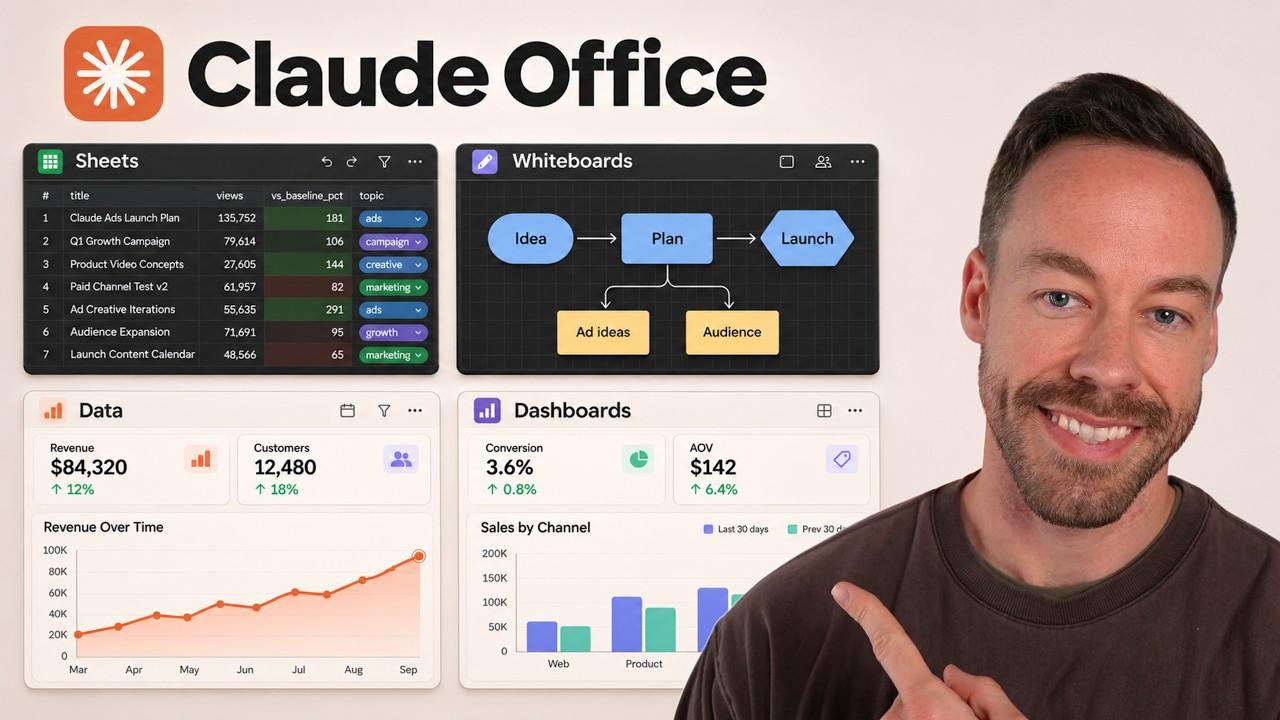
Claude Sheets is Claude's version of Excel — but think baby Excel, not a full replacement. It ships with 250+ functions, and like whiteboards, you can comment, prompt Claude, have it fill things out, and share with teammates.
Know the limits before you get excited: no VBA, no macros. You're not building financial models here. For heavy work, stay in real Excel.
Where it shines is the mundane stuff: you've got huge CSV files you just want sorted and organized into a clean spreadsheet format. That's the perfect use case for Claude Sheets.
What Is Claude Data?
Claude Data is the latest evolution of Claude Dashboards — live dashboards with live data updates and Claude built in. Throw whatever data you want at it, including output from Claude Sheets, and it builds the dashboard.
It connects to the big players — Redshift, Snowflake, Salesforce — so this is real data a real business would use, not just a demo. And you're not stuck with a plain spreadsheet view: you can present the data as a narrated story or a scrolly-teller.
If you sit on a lot of data and want an easy way to present it with live updates, Claude Data is built for exactly that.
Can Claude Join Your Meetings?
Yes — Claude can now join your video calls, as long as they're on Google Meet. Once it's in the call, it can spin up the other artifacts: a dashboard with Claude Data, a spreadsheet with Claude Sheets, or sketches on a whiteboard.
Beyond that, it sits in the meeting, takes its own notes, and hands out deliverables to everyone who attended. To set it up, connect your Google Calendar, head to meetings, and you can have it auto-join every meeting on your calendar.
The one limitation: it's Google Meet only right now — no Zoom, nothing else. But if you're tired of running a separate AI notetaker for every platform, this starts consolidating it all inside Claude.
What Is Fable Advisor Mode?
Fable Advisor puts the smarter, pricier model in charge of orchestrating a cheaper, faster one. We recently got Fable 5.2 — cheaper, faster, and higher performing than Fable 5.1 — but on the subscription plan you can only spend 50% of your weekly limit on Fable, so running it for everything isn't always practical.
Advisor fixes that. It tells a smaller model — Opus, Sonnet, or Haiku — how to do things, and that smaller model does the actual execution. When the smaller model hits a problem, it checks back in with Fable 5.2 in advisor mode and asks what to do.
You get the best of both worlds: the brains of Fable 5.2 directing the cheaper, faster execution of the lower-tier models. Turning it on is one command — run /advisor and you're set.
What Is the Claude Monthly Recap?
The monthly recap lets Claude look across all your logs — both the chat app and Claude Code — and show you where you've been spending your time. Go to Settings → Well-being → Reflect → View to see your breakdown.
You need memory turned on for it to work. It won't change how you work, but it's a fun way to see how you actually use the tool.
Which of These 10 Features Should You Try First?
If you only test a few, start here based on what you do:
- Builders in the terminal — turn on code mode for the token savings, and use
/shipto babysit your PRs. - People drowning in meetings — connect Google Calendar and let Claude auto-join and take notes.
- Anyone on a budget — run
/advisorto put Fable 5.2 in charge of cheaper execution. - Everyone — turn one of your artifacts into a desktop app. It's free on every plan and takes 15 seconds.
The theme across all 10 is clear: Anthropic is pushing Claude into standard office work — spreadsheets, dashboards, meetings, whiteboards — while quietly making the Claude Code experience cheaper and more autonomous.
Frequently Asked Questions
Do artifacts-as-desktop-apps work on the free plan?
Yes. Installing an artifact as a desktop app works on every single plan, including free ones. The app runs outside Claude Code but still connects to Claude and draws on your usage like normal.
What are the four MCP 2.0 upgrades?
MCP 2.0 adds four things: skills (MCPs ship with instructions that teach Claude how to use them), tasks (long jobs run in the background), elicitations (safety confirmations before dangerous actions), and file uploads (send files straight to the server to save context). Users get these automatically with no setup.
Does code mode work in the Claude Code desktop app?
No. Code mode is experimental and currently works only inside the CLI, not the Claude Code desktop app. It batches tool calls into a single JavaScript program to cut token usage and reduce context rot.
Can Claude join Zoom meetings?
Not yet. Claude meetings only support Google Meet right now. Once in a call it takes notes, builds artifacts like dashboards and sheets, and hands deliverables to attendees. Connect your Google Calendar to have it auto-join.
What does Fable Advisor mode do?
Fable Advisor (/advisor) puts Fable 5.2 in charge of orchestrating a cheaper model like Opus, Sonnet, or Haiku. The smaller model executes tasks and checks back with Fable whenever it hits a problem — giving you Fable's reasoning with cheaper, faster execution.
If you want to go deeper into getting the most out of Claude Code, join the free Chase AI community for templates, prompts, and live breakdowns. And if you're serious about building with AI, check out the paid community, Chase AI+, for hands-on guidance on how to make money with AI.
Topicsclaudeanthropicclaude-codemcpai-toolsproductivity