How to Build 3D Websites with GPT-6 Astra and Blender
Build a premium, interactive 3D website without touching Blender yourself. Here is the four-step GPT-6 Astra + Codex workflow I used to ship one.
On this page
You can build a premium, interactive 3D website without ever touching Blender yourself. With GPT-6 Astra running inside the Codex app (or Claude Code), you generate a 3D asset, let the agent build it in Blender through scripting, convert it to Three.js, and drop it into a hero section that reacts to your mouse and scroll. I did exactly this — and I've never used Blender a day in my life. Here's the four-step process, including the part where you just sit back for 12 minutes while the agent does the work.
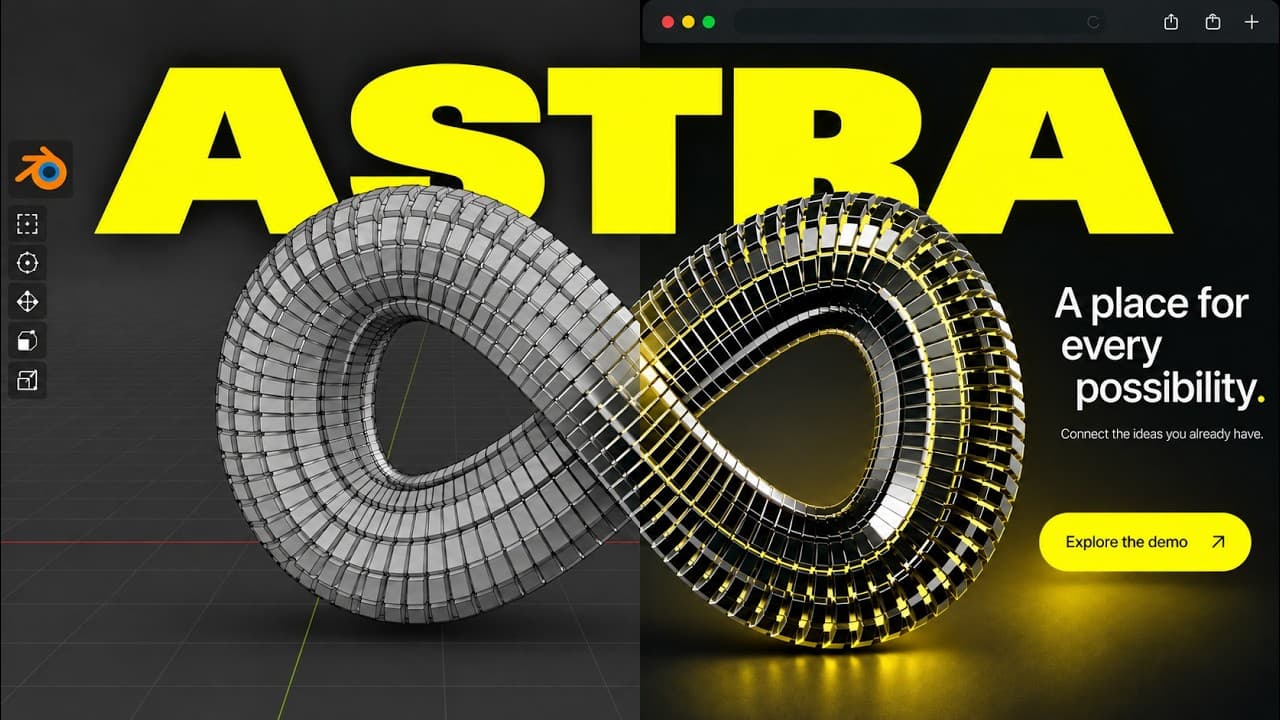
Most "AI websites" look like slop: a stock gradient, a chopped-up Seedance video shoved in the background, or some scroll animation stitched together from video frames. This is different. The 3D sculpture in the hero isn't a pre-recorded clip — it's a live asset rendered with Three.js that follows your cursor, expands and collapses, and moves as you scroll down the page. It looks premium because it is.
What Is GPT-6 Astra and How Does It Build 3D Assets?
GPT-6 Astra is the model powering this workflow inside the Codex app — and it can drive Blender programmatically to build 3D assets from an image reference. You describe the look you want, Astra generates concept images, then it scripts the entire asset creation inside Blender without you touching a single node.
Here's the thing most people miss: you don't need to know Blender. The agent does everything through scripting. It even uses computer use to pull Blender up on screen, look at what it built, and verify the result — but the actual construction is code, not you dragging vertices around.
Everything in this guide runs through GPT-6 Astra inside Codex, but you can do essentially the same thing inside Claude Code. Pick whichever agent you already live in.
What Do You Need Before You Start? (Step Zero)
Before the four steps, there's a step zero: prerequisites. This is what has to be on your machine for the workflow to run.
- Codex or Claude Code — your agent of choice. This is what orchestrates everything.
- Blender — totally free and open source, so downloading it is trivial.
- Two companion skills — the agent installs these for you if you point it at the GitHub repo.
The two skills matter. The first is Blender Agent Studio, a skill I found on GitHub. It's not popular — only about 20 stars — but it worked well for me. The second is a Blender-to-web skill, which is part of the companion GitHub repo. Point Claude Code or Codex at that repository and it will install the skill for you automatically.
The repo also contains every sample prompt used in this process, plus a breakdown of what to install. You don't have to reverse-engineer any of this.
Step 1 — How Do You Design the 3D Asset?
Don't open Blender first. Start by generating concept images with Astra so you can lock in the aesthetic before building anything. This is the single biggest time-saver in the whole process.
Instead of prompting Blender with pure text — "I want some infinity-loop thing, gray and toxic yellow, kind of scaled" — you give Astra that same description and have it generate a gallery of image variations. That image becomes the reference the agent uses to build the actual 3D asset later.
When I did this, I had no clear idea what I was going for at first. You probably won't either, and that's fine. I told Codex I wanted a hero section with an interactive 3D asset — black with a neon, toxic-yellow color — something that reacts when I move my mouse or click it. Then I told it to generate a bunch of options.
The concept gallery came back with a robot face, a robotic arm, some living-fabric thing, another robotic hand, and a sculpture — a kind of infinity shape. The sculpture is the one we ran with, and it became the design everything else was built from.
Generating five, six, seven image variations is dramatically faster than jumping into Blender and building blind. There's a sample design prompt in the GitHub repo. Take it, drop it into Codex, and say: use this as a template, but instead of a 3D hero for a fictional optics product called Luma, build one for [your topic]. Then tell it to create several variations. This is the fastest way to iterate at step one.
Step 2 — How Does the Agent Build It in Blender?
Once you've picked a design, you tell Codex to turn that image into a 3D asset inside Blender — and it does the whole thing itself. All you need is Blender installed (or point the agent at the repo and it installs it for you).
In my run, the agent built the asset in 12 minutes and 40 seconds. It works through scripting, occasionally using computer use to bring Blender up on screen and check its own work. You, the human, don't touch anything in Blender. You find something to do for twelve and a half minutes.
You are not stuck with the one-shot result. On my website, the sculpture had a pulsing yellow light running through the entire structure — that wasn't in the first iteration. I just told the agent to add it. This step is all iteration: tell Codex what you want, it builds it in Blender, you look at the result, and you go back and forth until you're happy.
You also don't have to view the asset only inside Blender. You can tell the agent to convert it to Three.js and drop it into a standin hero section so you can see what it'll actually look like on a web page before you finalize anything.
Step 3 — How Do You Build the Website Around the Asset?
With the asset done, the agent converts the Blender model into a Three.js construct and builds the site around it — and the asset doesn't have to stay locked in the hero. In my demo, I built a fake company called Aperture around the sculpture.
The cool part is how the asset moves through the page. It doesn't just sit in the hero. As you scroll, it scrolls with you and tells a story about the product — it bursts apart at one point ("your best ideas arrive together… oh man, it's falling apart"), then reassembles and shifts to the other side of the screen to make room for the next section. You get callouts to that same asset throughout the page.
Same principle as step one applies here: mock up the website before you code it. Codex has a built-in image generation tool. Have it generate page mockups instead of coding everything from scratch. I told it, here's the asset we created, I want a coherent story from the hero all the way to the bottom — how do we make this fit together? The mockups came back as basically a one-shot.
The goal is to highlight the asset throughout the page because it's the thing that makes the site feel special. I've made plenty of videos on web design best practices with Claude Code and Codex, so I won't turn this into a diatribe — but the workflow is the same: iterate, iterate, iterate. Keep working with the agent, keep generating mockups, until the page is where you want it.
Step 4 — How Do You Optimize a 3D Website for Mobile and Performance?
A live 3D asset can be a resource hog, so the last step is optimization — and there's a prompt in the repo that has the agent handle it for you. This is what separates a visual spectacle from a website people can actually use.
On mobile, you're not running a full 3D asset going nuts on someone's old Android phone. You swap it for a still image so a fifteen-year-old phone doesn't catch fire. The agent handles the fallback logic.
The optimization prompt has Codex check the whole site across different hardware levels and make sure it runs on mobile. Concretely, that includes:
- Measuring the asset download size so the page isn't shipping a bloated model.
- Pausing rendering when the asset is offscreen so it's not burning GPU cycles the user can't even see.
- Verifying it works at different hardware levels — not just your beefy desktop.
The end result is a runnable website, not a demo that only works on the machine you built it on.
How Do You Host the Finished Site?
If you're in Codex, you can use its built-in hosting service — it's essentially a built-in Vercel. Inside Codex, use @sites, point it at the website you already created, and it hosts itself.
It's dead simple for sharing a build with a few people so they can take a look. I wouldn't use it for true production, but for a quick shareable link it's the fastest path from "done" to "live."
Why Is This Better Than AI Video Backgrounds?
This looks premium, and that's the whole point. A Seedance video in the background or a scroll animation chopped out of video frames reads as slop. A live 3D asset that reacts to the cursor and moves through the page reads as a real product.
The bigger idea: this lets you play in a space you have no business playing in. How many of you have the time or the inclination to actually learn Blender? Probably none of you — not yet. But you can still ship a website that looks like someone who knows Blender built it. That's the leverage.
Frequently Asked Questions
Do I need to know how to use Blender?
No. The entire point of this workflow is that the agent — GPT-6 Astra inside Codex or Claude Code — builds the asset in Blender through scripting. I've never used Blender in my life. You install it, point the agent at it, and it does the construction and verification itself.
How long does it take to build the 3D asset?
In my run, the agent built the asset in 12 minutes and 40 seconds, working entirely through scripting. You don't touch Blender during that time — you just wait for it to finish, then iterate on the result until you're happy.
Can I do this in Claude Code instead of Codex?
Yes. Everything shown here runs through GPT-6 Astra inside the Codex app, but you can do essentially the same thing inside Claude Code. Use whichever agent you already work in — the process, prompts, and companion skills are the same.
What about mobile — won't a 3D website crash phones?
No, because you optimize for it. On mobile the live asset is swapped for a still image so older phones aren't overloaded. The optimization step also measures asset download size and pauses rendering when the asset is offscreen so the site stays performant.
What skills do I need to install?
Two: the Blender Agent Studio skill (found on GitHub, around 20 stars, but it works well) and a Blender-to-web skill that lives in the companion GitHub repo. Point Claude Code or Codex at the repo and it installs the skills, plus all the sample prompts, for you.
If you want to go deeper into building with AI, join the free Chase AI community for templates, prompts, and live breakdowns. And if you're serious about building with AI, check out the paid community, Chase AI+, for hands-on guidance on how to make money with AI.
Topicsgpt-6-astrablenderthree-jsweb-designcodexclaude-code